Neruna speaks both S/MIME and PGP. With PGP you sign and encrypt mail with a key of your own – no certificate authority needed, compatible with other OpenPGP programs.
S/MIME or PGP?
Both do the same thing: a signature shows that the mail really comes from the sender and is unchanged; encrypted, only the recipient can read it. S/MIME needs a certificate from a certificate authority, PGP a key you create yourself. Whether a PGP key can be trusted is up to you – by comparing its fingerprint.
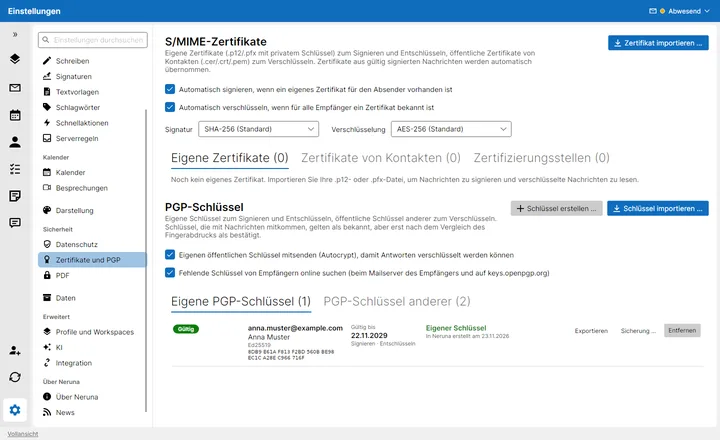
You can have both. When sending, Neruna uses the method for which all recipients have a certificate or key. Everything is under Settings → Certificates and PGP.
Your own key
In the “PGP keys” section:
Create a key … – for one of your addresses. Neruna creates a key with Ed25519 for signing and Curve25519 for encryption, valid for three years. The passphrase is kept in the system's key store.
Or Import key … – an existing key (.asc, .gpg, .pgp, .key) from another program, with its passphrase.
Backup … – saves the key with its private part, protected by a passphrase. Do it right away: if the computer fails, encrypted mail can't be read otherwise.
Export – saves only the public key (.asc), to pass on. Usually not even needed: Neruna sends it along with every mail (Autocrypt).
PGP keys: your own and other people's, with fingerprint
Other people's keys
To write to someone encrypted, you need their public key. Neruna finds it in three ways:
With their mail – many programs send the key along (Autocrypt). Neruna keeps it as “known”.
Online – if a key is missing when you encrypt, Neruna asks the recipient's mail server and keys.openpgp.org. This only happens when you encrypt yourself, never while reading; you can turn it off in the settings.
As a file – via Import key … when someone sends you their key.
Confirming a key
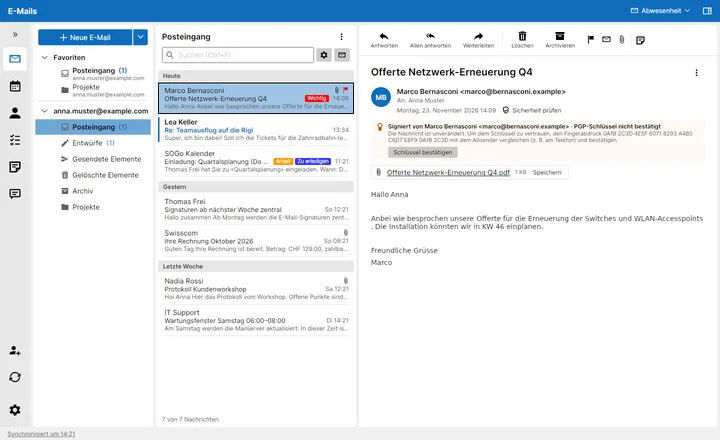
A key that arrives with a mail could also come from someone else. That is why Neruna shows a signature made with a merely known key in yellow: “PGP key not confirmed”. Compare the fingerprint with the sender – on the phone or in person – and click Confirm key right in the mail. The signature then turns green, and the key is saved with the contact.
Confirm the sender's key right in the mail
You can do the same in the settings with Confirm next to any key. Your own keys, keys from your contacts and your organisation's keys from Neruna Cloud count as confirmed by themselves.
Signing and encrypting
If you have a key of your own for the sender, Neruna signs every mail; if keys are known for all recipients, it is encrypted, too. While you write, “Signed” and “Encrypted” sit next to the buttons, and before a mail goes out unencrypted, Neruna asks. Both can be switched on and off at the top of the settings and for each mail under “More”.
If you have both S/MIME and PGP for an address, When both are possible decides which method comes first; for a single mail you choose under More → Method. This setting only appears when you really have both.
Reading mail
Neruna reads PGP/MIME and also older mail with PGP right in the text (inline PGP). Above the mail you see what the check found: green when the signature is valid and the key confirmed; yellow when the key is not confirmed, unknown or doesn't belong to the sender's address; red when the mail was changed after signing.
With Neruna Cloud
In an organisation with Neruna Cloud, your admins import or create the PGP keys in the portal and assign them to people – like S/MIME certificates, encrypted in the browser and approved per device. The public keys of all your colleagues arrive by themselves and count as confirmed: within the company you don't need to compare fingerprints. If a key is taken away from you in the portal, Neruna deletes its private part on your device.