One button for tasks you would otherwise do step by step: filing invoices, approving quotes, forwarding delivery notes. Here is how to set it up and share it with your team.
What a quick action is
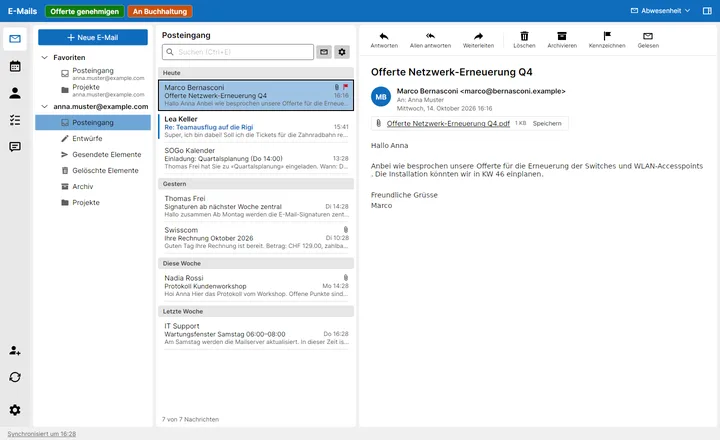
A quick action consists of a button, conditions and steps. When the open email meets the conditions, the button appears in the coloured bar at the top next to “Emails”. One click runs the steps in order.
Where you have to do something yourself, Neruna waits: for a stamp you click the spot in the PDF, when saving you confirm the already filled-in dialog, you check a reply before sending. You set up quick actions under Settings → Email → Quick actions.
Quick actions as buttons in the bar at the top, matching the open email
Example: approving quotes
Quotes arrive as PDFs by email. They are to be stamped, filed on the network drive and confirmed to the sender.
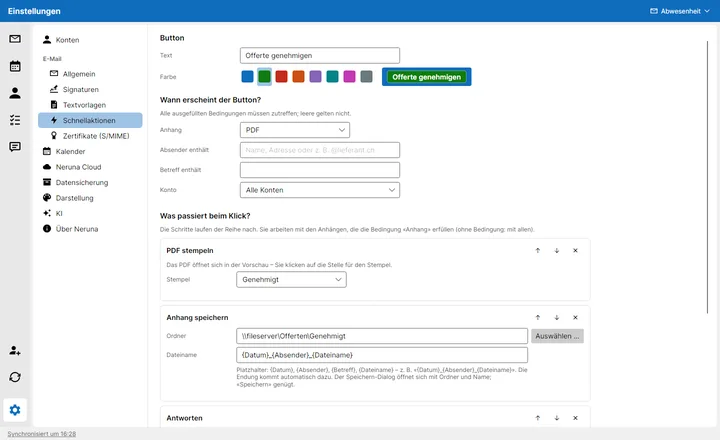
Enter “Approve quote” as text and choose green. The preview shows how the button looks in the bar.
Under “When does the button appear?”, choose “PDF” as attachment and enter “quote” under “Subject contains”.
Add the step “Stamp PDF” with the stamp “Approved”.
Add the step “Save attachment”, choose e.g. \\fileserver\Quotes\Approved as folder and {Datum}_{Absender}_{Dateiname} as file name.
Add the step “Reply” with a text template such as “Quote confirmed”, then “Move to folder” with the folder “Done”. Save.
Setting up a quick action: button, conditions, steps
If you now open an email with a quote as PDF, “Approve quote” appears at the top. One click opens the PDF for stamping. Then the save dialog opens in the quotes folder with the file name ready. Finally the reply with the stamped PDF is ready and the email goes to “Done”.
Conditions
All filled-in conditions must apply; empty ones are ignored. Without any condition the button appears for every email.
Attachment
Any attachment, PDF, image, Office file (Word, Excel …) or particular extensions such as “xml, csv”. The steps work with exactly these attachments.
Sender contains
Part of the name or address, e.g. “@supplier.com” for all emails from a supplier.
Subject contains
A word in the subject, e.g. “invoice” or “quote”. Upper and lower case do not matter.
Account and folder
Only in one account, e.g. the info mailbox, and there, if you like, only in one folder.
Steps
Stamp PDF
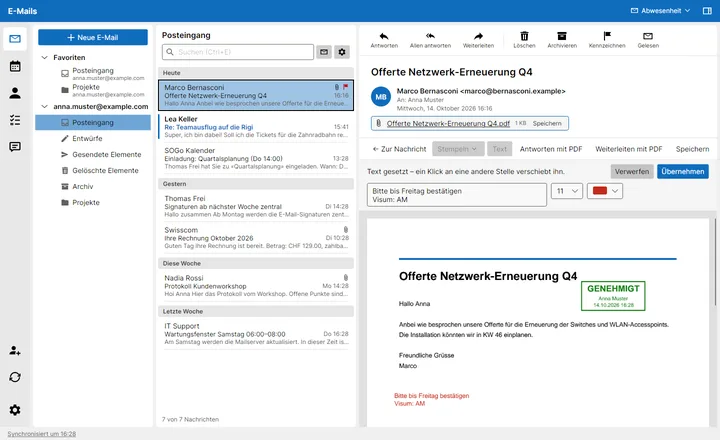
The PDF opens in the preview, you click where the stamp goes and then “Continue”. “Cancel action” ends the whole quick action.
Save attachment
The save dialog opens in the given folder with the file name from the pattern. You just confirm or choose another place.
Print, open
The attachments go to the default printer or open in their program.
Reply, forward, new email
With the stamped PDFs attached. If you like to a fixed address (e.g. accounting) and with a text template above the signature. The email opens for checking; it is only sent when you click.
Move, flag, read
The email is moved to a folder, flagged or marked as read, usually as the last step.
Placeholders for file names
Neruna fills in these placeholders in the file name and in the subject of a new email. The attachment's extension (.pdf) is added automatically. Without a pattern the attachment keeps its name.
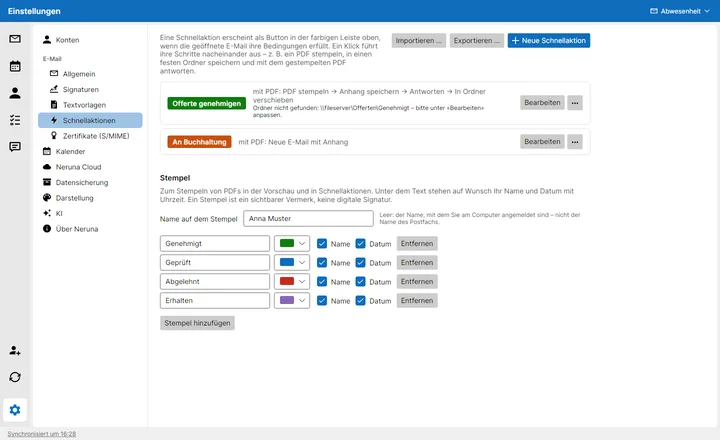
You edit the stamps on the same page: text, colour and whether name and date appear below. As the name Neruna uses the name you are signed in to the computer with, not the mailbox's name. So even with a shared info mailbox the right name is on the stamp. Under “Name on the stamp” you can override it. You can also place stamps and your own text without a quick action: in the PDF preview with “Stamp” and “Text”.
Stamp and your own text right in the PDF
Sharing in the team
You share quick actions as files, deliberately without the cloud: target folders on network drives and mail folders differ a little on every computer and are easy to adjust this way.
“Export …” creates one file per action in a folder, e.g. “Approve quote.nerunaactions”. You export a single action via “⋯ → Export …”.
Put the files on the file share or send them by email.
On the other computer choose “Import …”, also several files at once. Neruna finds accounts by their email address and text templates by name. Missing stamps come along.
If a target folder is missing on this computer, the action is marked in red. Choose the right folder via “Edit”. If an action changes later, import just its file again; the new version replaces the old one.
Quick actions and stamps in the settings, with export and import